How to Use Kling AI: Step-by-Step Image-to-Video Guide (With Screenshots)
Are you eager to learn how to use Kling AI to transform your static images into realistic cinematic videos? You are in the right place.
In 2026, generative artificial intelligence has made professional video production accessible to everyone. Instead of learning complex 3D rendering or editing software, you can now animate photos using simple text prompts and camera motion controls.
In this comprehensive guide, we will show you exactly how to use Kling AI from start to finish, complete with actual interface screenshots, so you can start generating high-quality AI videos today.
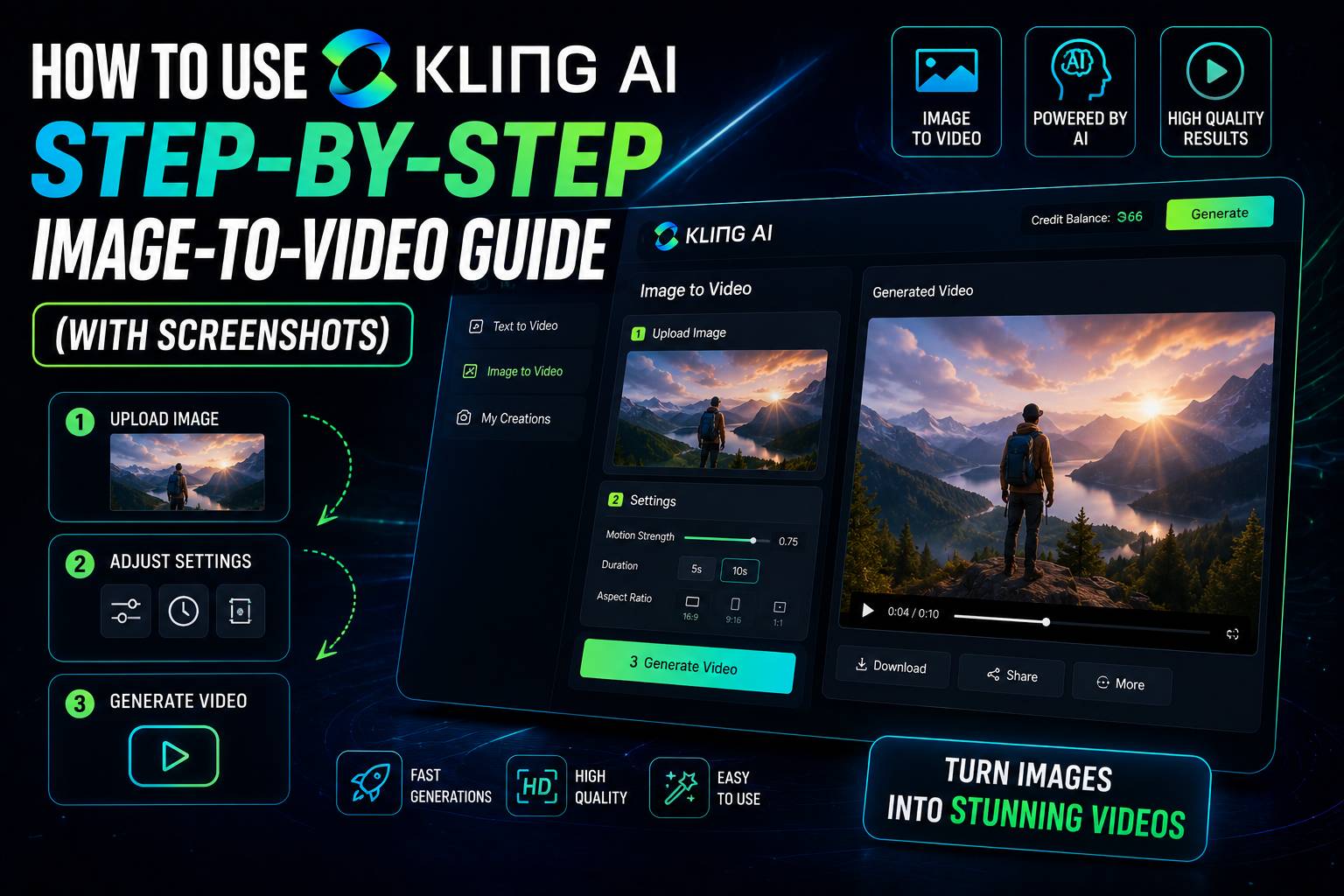
How to Use Kling AI: A Step-by-Step Screenshot Tutorial
Animate your static visuals effortlessly. Follow this detailed, step-by-step guide to master the Kling AI image-to-video workflow:
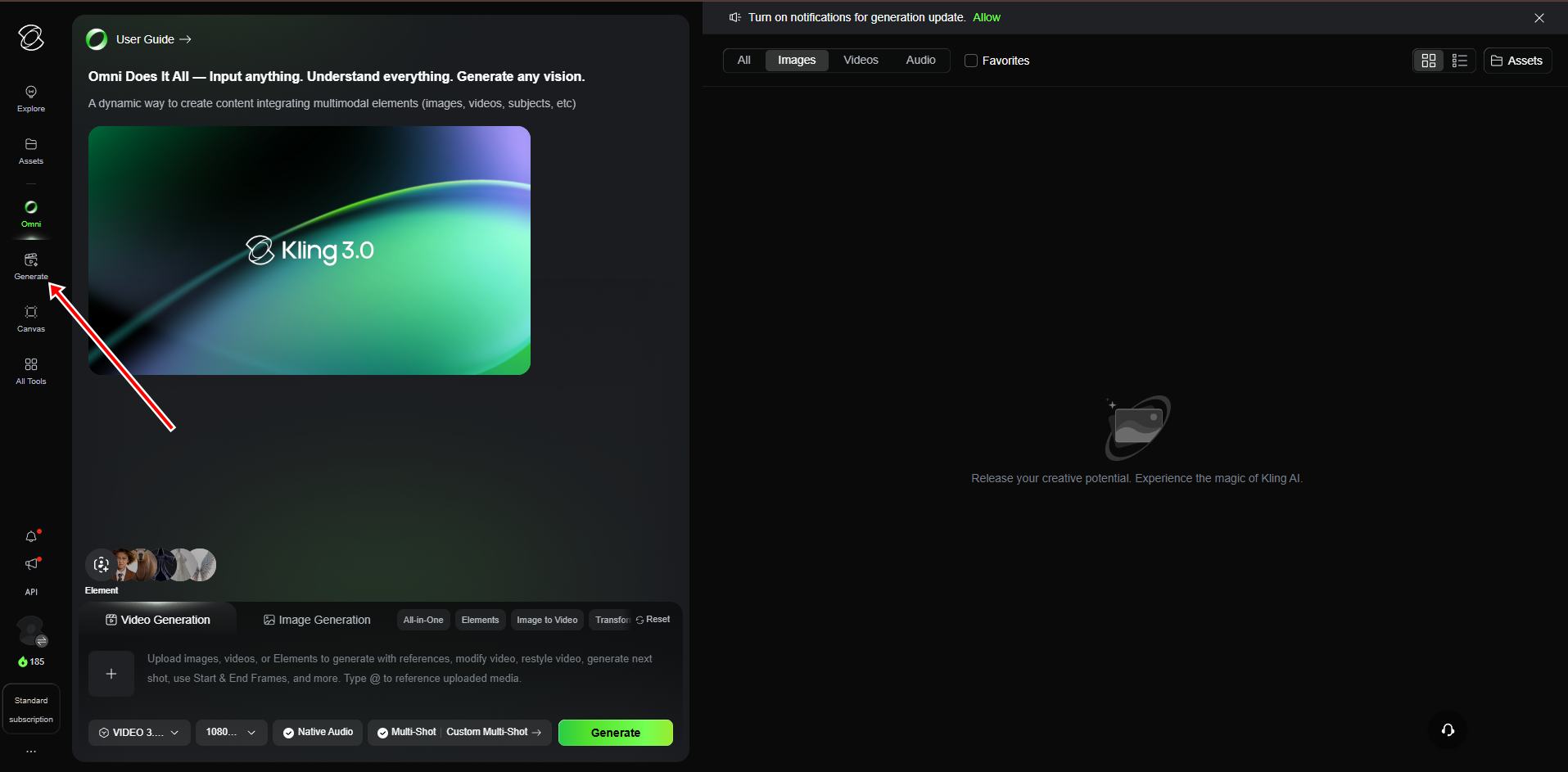
Step 1: Go to the Generate Section
First, let's learn how to use Kling AI dashboard navigation. When you open the main platform interface, look at the left sidebar menu. Locate the "Generate" button (with the video icon) and click it. This will immediately open the video creation workspace.
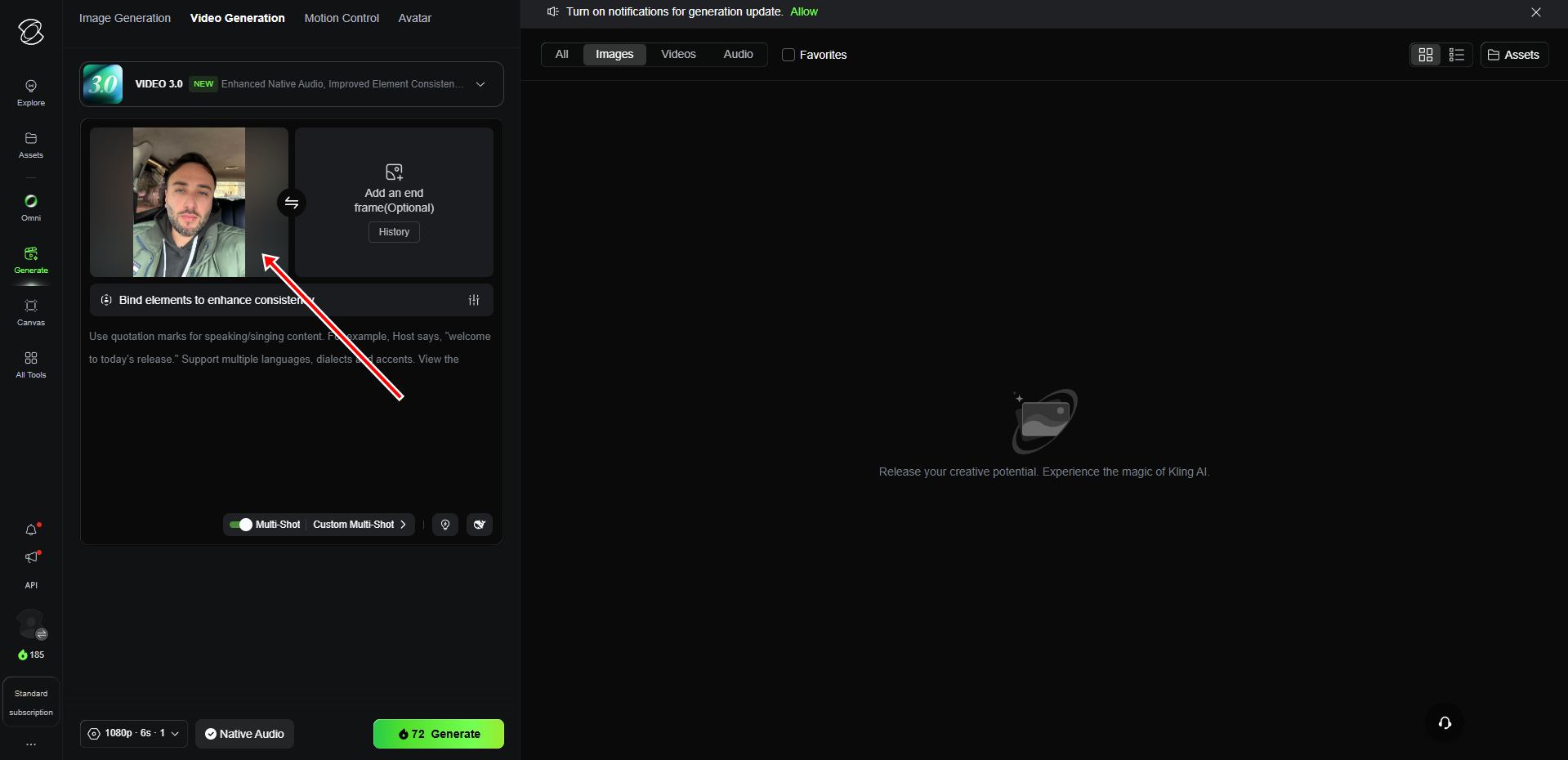
Step 2: Upload Your Base Image
Knowing how to use Kling AI image uploading system is very straightforward. Ensure you are in "Video Generation" mode. Click on the large "+" box under the Video 3.0 model header and upload your desired start frame photo. High-quality portraits or landscapes work best for realistic motion.
Step 3: Write Your Motion Prompt
Next, let's look at how to use Kling AI text prompt generation. Below your uploaded image, find the text input box. Describe the exact motion, mood, and lighting you want to apply to the scene. You can also use the circular arrow button to activate the AI prompt generator helper, which analyzes your photo and writes a detailed prompt automatically.
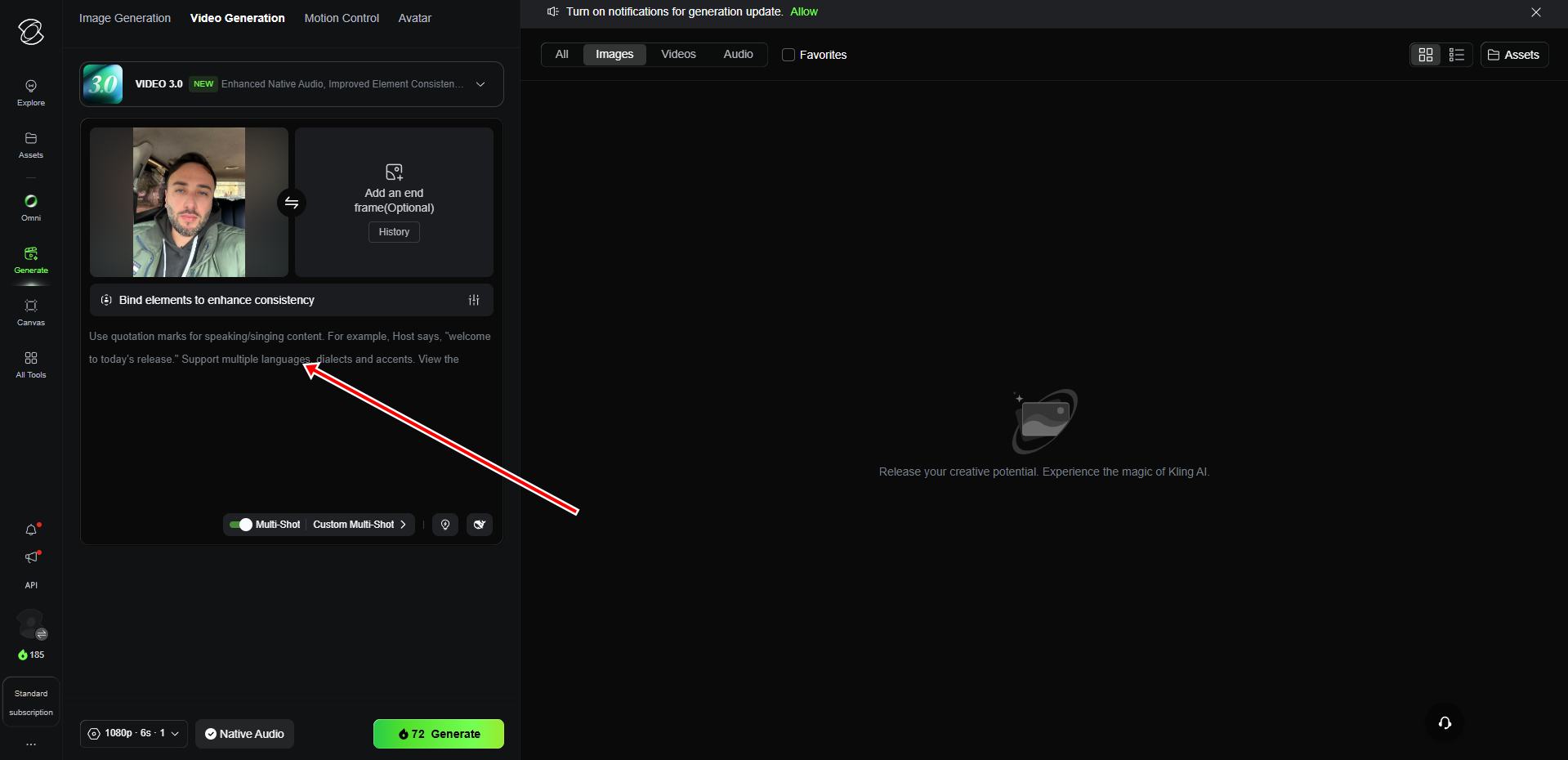
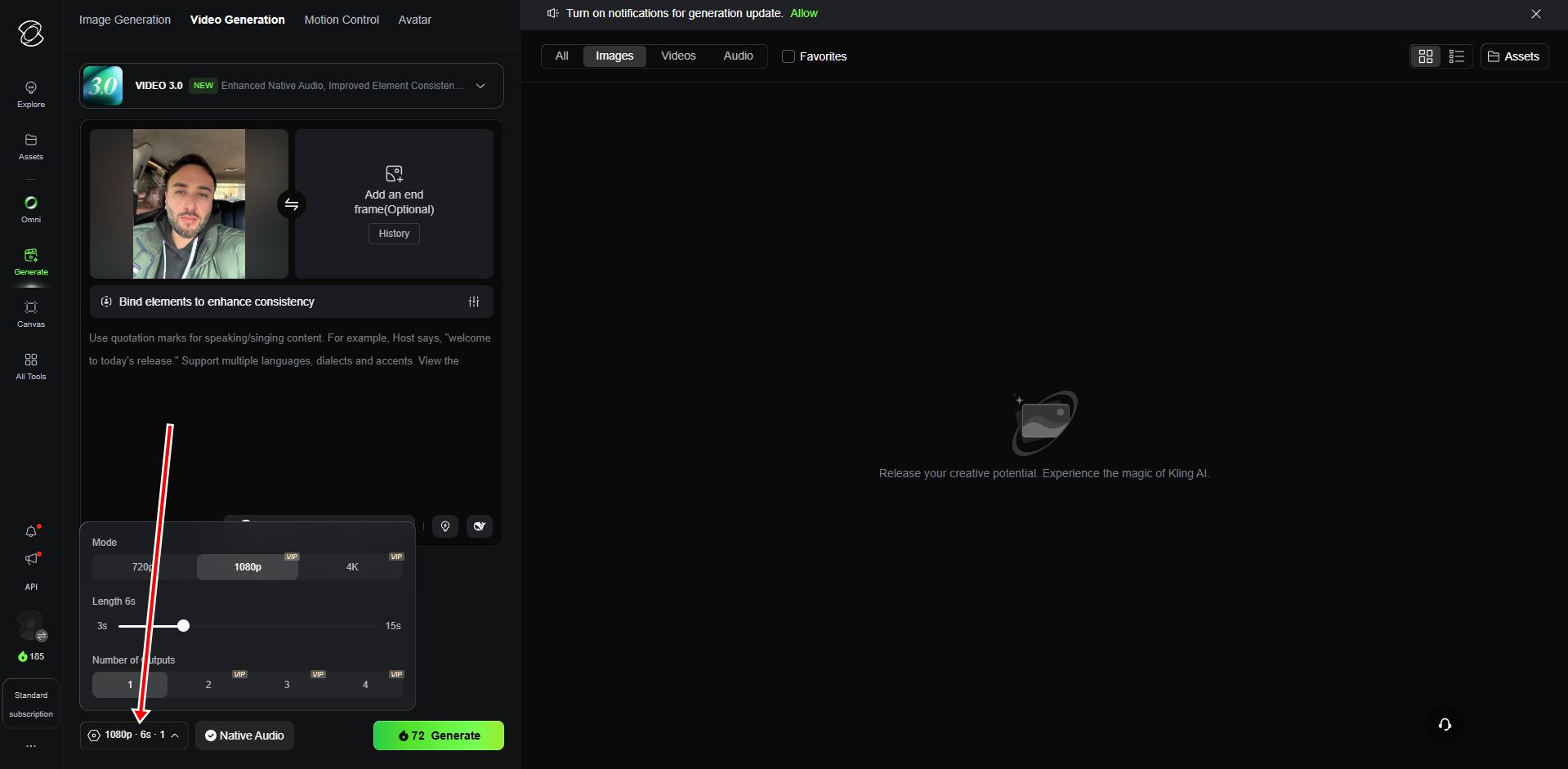
Step 4: Configure Video Resolution and Duration
To maximize quality, understanding how to use Kling AI advanced settings is essential. Click on the resolution box (e.g., `1080p - 6s - 1`) at the bottom left. A settings window will pop up. Here, you can choose your output mode (720p, 1080p, 4K), set the exact video length (e.g., 6 seconds), and choose the number of variations you want to generate.
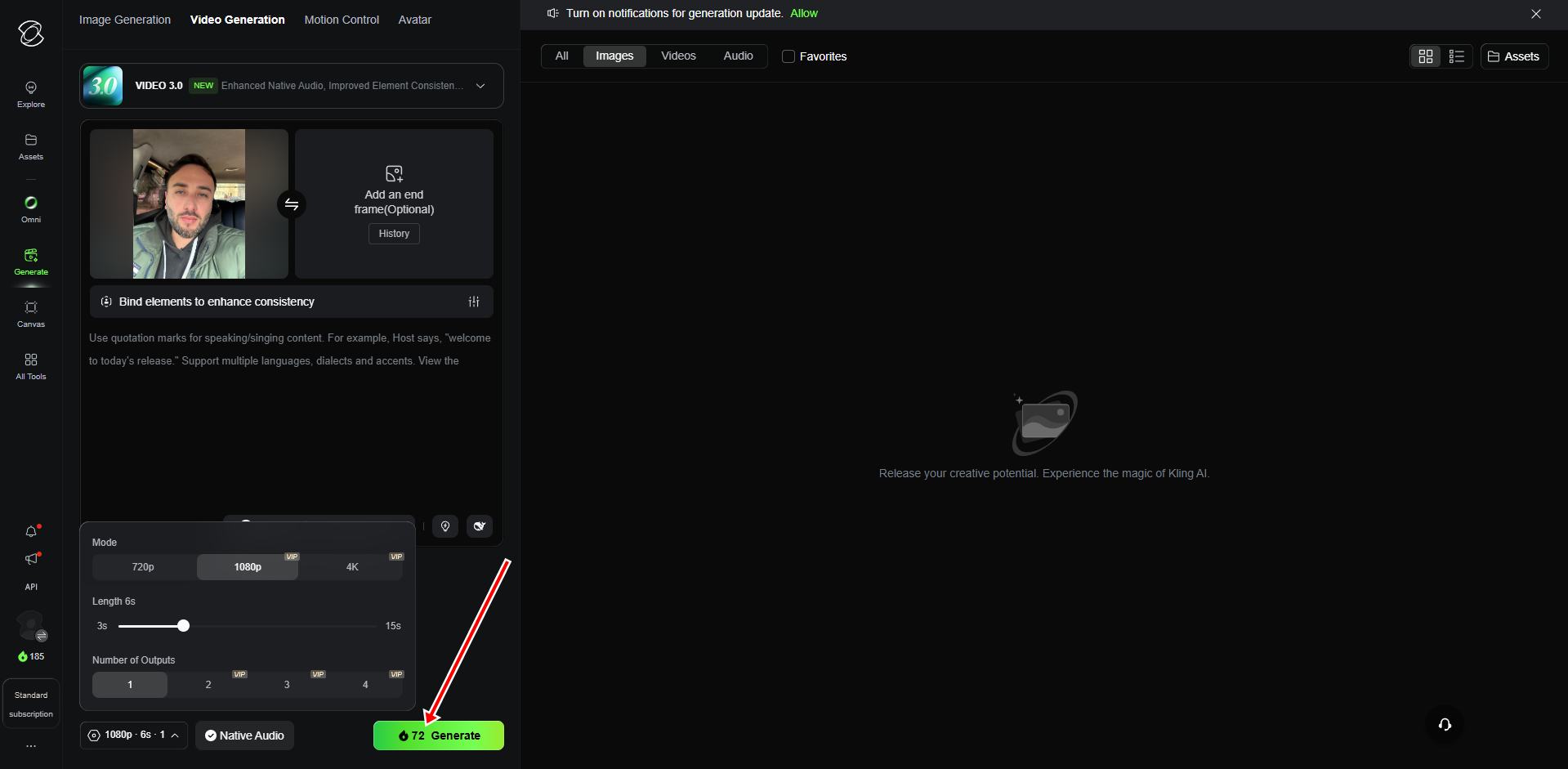
Step 5: Click the Generate Button
Once all settings are ready, let's see how to use Kling AI generation engine. Review your settings and click the green "Generate" button located at the bottom right. The task is submitted to the cloud, and your video rendering will begin.
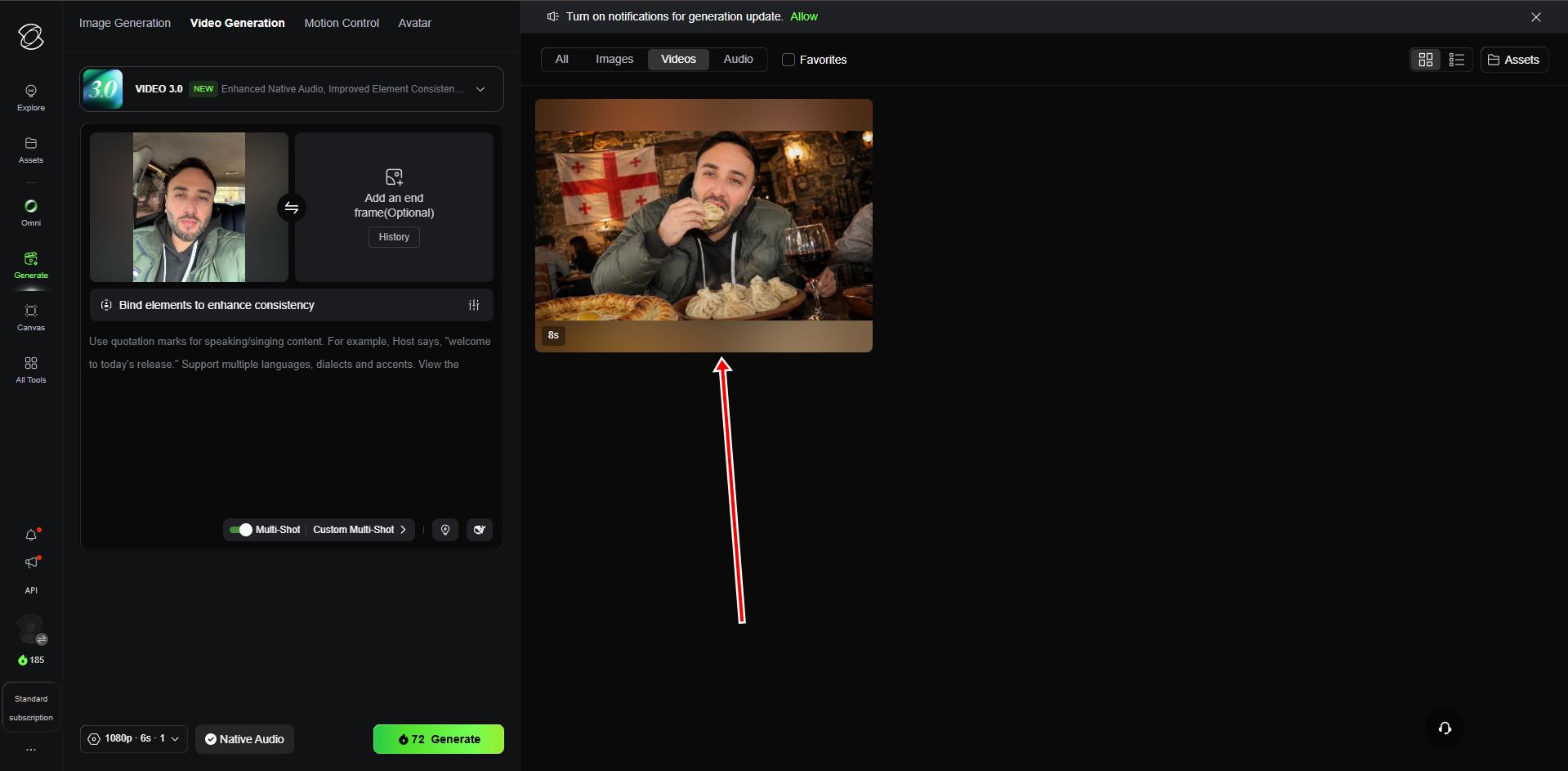
Step 6: View and Download Your Final Result
Within minutes, your final masterpiece will appear in the right-side media assets panel under the "Videos" tab. You can now click play to review the smooth motion, lighting effects, and realistic cinematic rendering, and download the finished high-quality MP4 file.
How to Use Kling AI: Video Output Settings
To get the best results, configure your rendering settings based on your project goals:
| Setting | Recommended Value | Best Used For |
|---|---|---|
| Aspect Ratio | 16:9 (Horizontal) or 9:16 (Vertical) | Horizontal for YouTube; Vertical for TikTok & Reels |
| Duration | 5 Seconds (Standard) | Ideal for quick transitions and standard cinematic clips |
| Motion Strength | Medium (4 to 6) | Keeps human faces and objects realistic without distortion |
| Mode | Professional / High Quality | Best for detailed textures, realistic lighting, and ads |
Maximizing Your Creative Workflow
To achieve professional-grade results, we highly recommend matching your local video generation with premium audio narration. You can combine Kling AI's visuals with realistic voiceovers generated by ElevenLabs.
Want to see Kling AI in action from start to finish? Watch our full video tutorial on how to create AI video ads using Kling AI, ElevenLabs, and CapCut — a complete cinematic workflow from image to finished commercial.
Additionally, once your cinematic clips are rendered, you can edit and compile them using standard browser editors, or explore other automated publishing tools on our StreamYard alternatives comparison list.
Final Thoughts
In 2026, indeed, mastering how to use Kling AI is one of the most powerful skills you can learn as an online creator, marketer, or designer.
By turning simple static images into realistic, moving cinematic video ads or vlogs, Kling AI bypasses the need for high-end cameras and full production crews.
Test your creativity today! Sign up for a free account, upload a beautiful image, configure your motion prompts, and watch your imagination come to life!
Get Started with Kling AI